
A PDF reader for research.
The window is nearly all page: one slim toolbar carries the tools you use frequently, and everything else — contents, notes, the assistant — stays out of the way until you call it. Free, MIT-licensed, and offline unless you ask a question.
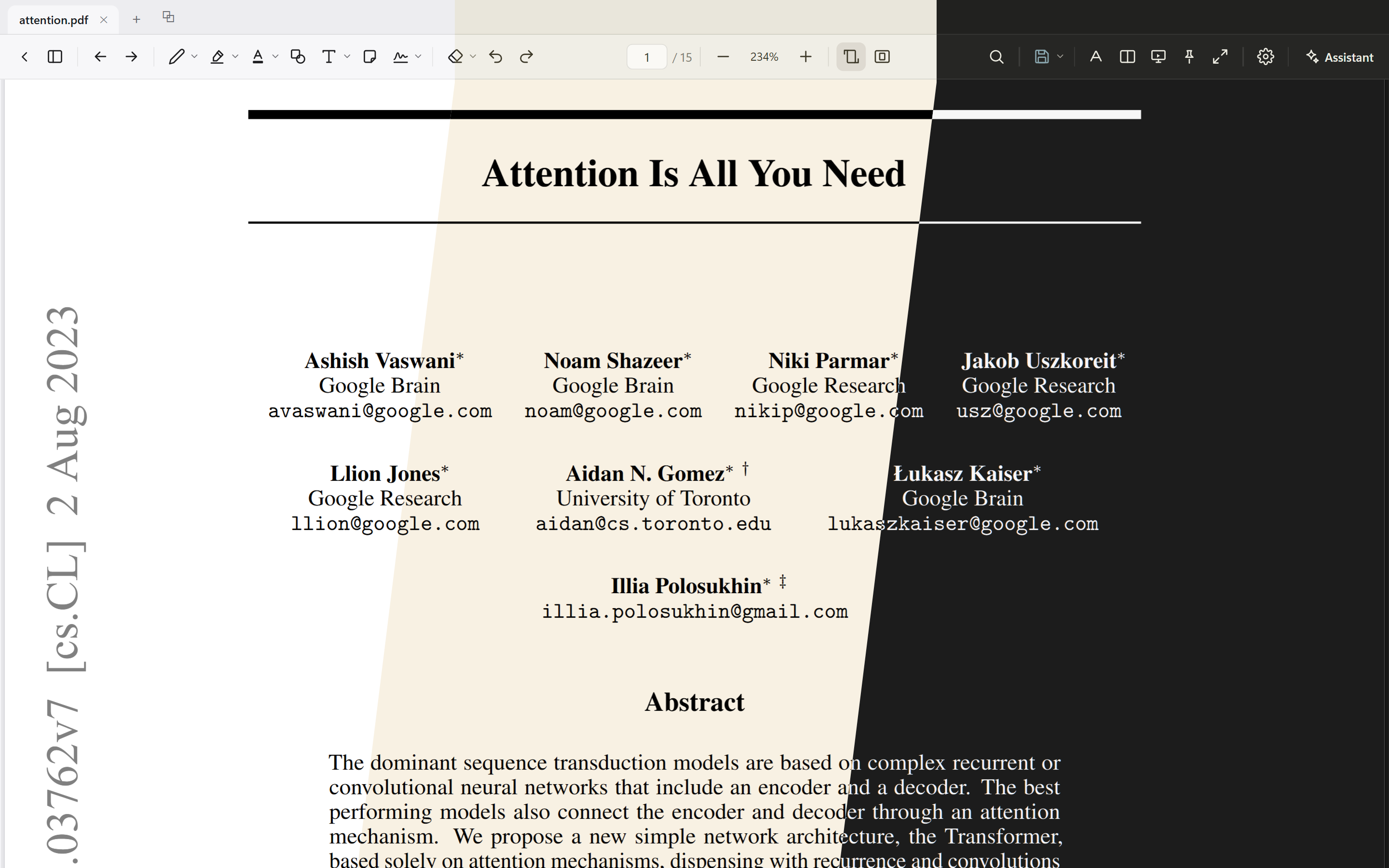
Undistracted reading
The frame above is one window shown in three of the four reading modes — Day, Tint (a light paper tone: the classic Sepia cream, or gray, green, blue or sand) and two dark modes, the second with higher contrast — plus Auto, which follows the system. Night has its own dark tones — or «White», the document as printed inside the dark chrome — and can keep pictures in their original colours; a slider sets the strength, and the toolbar follows the chosen tone.
- Table of contents, thumbnails and bookmarks in one panel, a page field in the toolbar that jumps straight to a page number, and back/forward buttons that hold the navigation history.
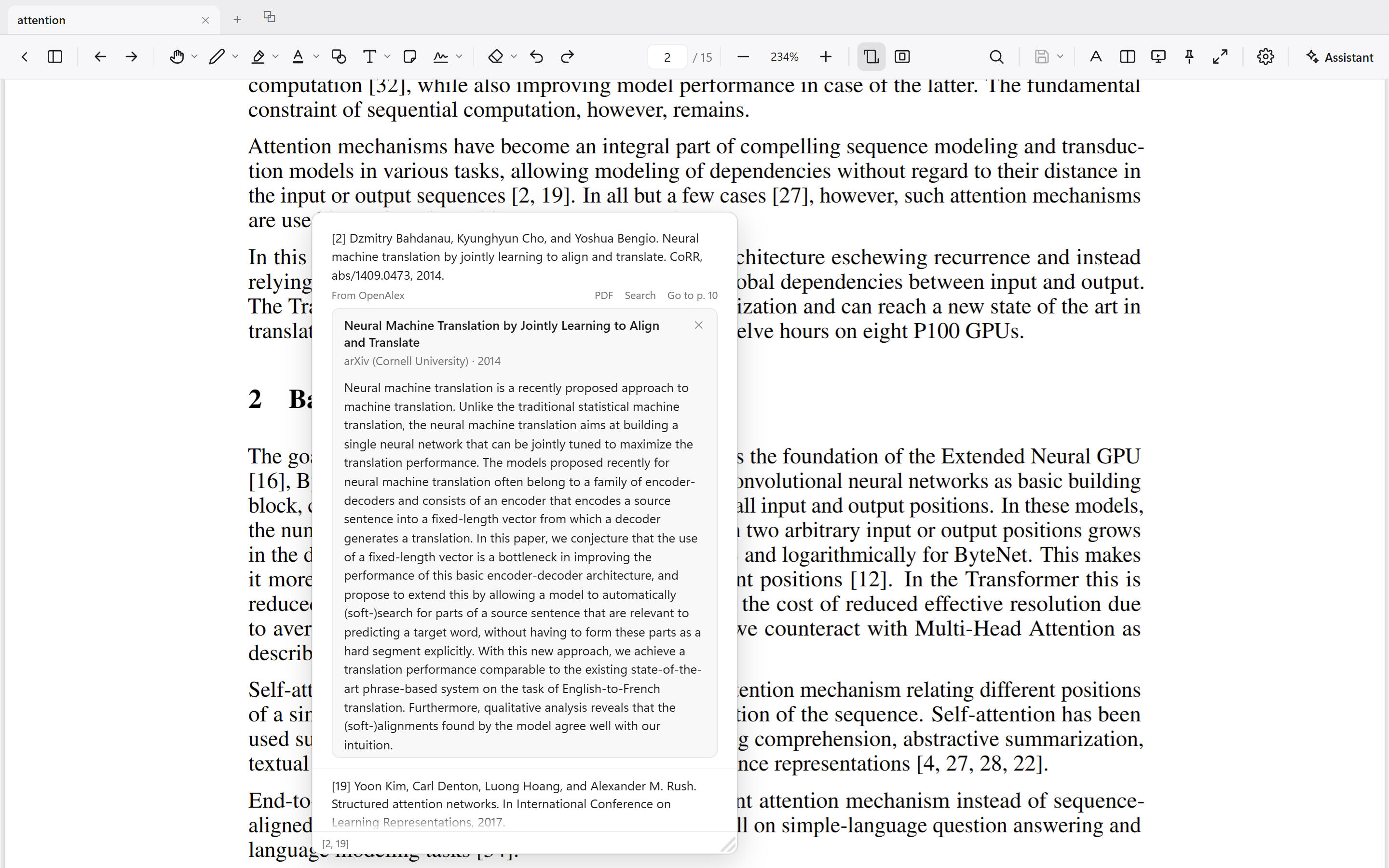
- Internal links can be previewed where they are cited — citations, figures, tables and equations alike (see below).
- Zoom centres on the cursor or pinch point, and one button toggles fit-width and whole-page. Pages can be rotated, read as a two-page spread, turned one at a time instead of scrolled, or shown in full-screen presentation mode.
- Documents open in tabs and separate windows; tabs can be pinned, and each window gets its tabs back at the next launch. A tab drags like a file — into another window, or into anything that takes a PDF, such as a browser's upload field or an e-mail. The library lists recent files, or shows their first pages with how far you read; every file reopens where you stopped, and going back to the library closes nothing.
- The toolbar can be unpinned; the page then fills the window, and the toolbar and panels return on hover at the window edges.
- The interface is in Norwegian, English or Simplified Chinese; the choice also applies to the AI prompts, exports and dates.
Previews where you read
Rest the pointer on a citation, a figure, a table or an equation reference and a preview of what it points to opens beside the text, without moving the page. A citation shows its reference as text, the way Zotero's reader does — selectable, its DOI and web links live — and a bracketed citation like «[3, 5–9]» lists every reference in it, whichever of its numbers the pointer rests on, each with «Go to» for its place in the list. A figure, a table or an equation gets a window onto its page: scroll it, Ctrl+wheel to rescale it, drag the corner to make it bigger. Click inside to go there, Ctrl+click to open it in the other column.
- On a citation, one click fetches the cited paper's abstract from free scholarly databases (arXiv, Europe PMC, Crossref, OpenAlex) — no key, no account, and only on that click; each reference in a bracket has its own. In the reference list itself, select an entry and choose “Abstract”.
- Roughly two in three citations find an abstract; books, working papers and some paywalled journals often do not.
- “Preview links” in the settings menu turns the previews off, or sets how long the pointer rests before one opens.
Two pages at once
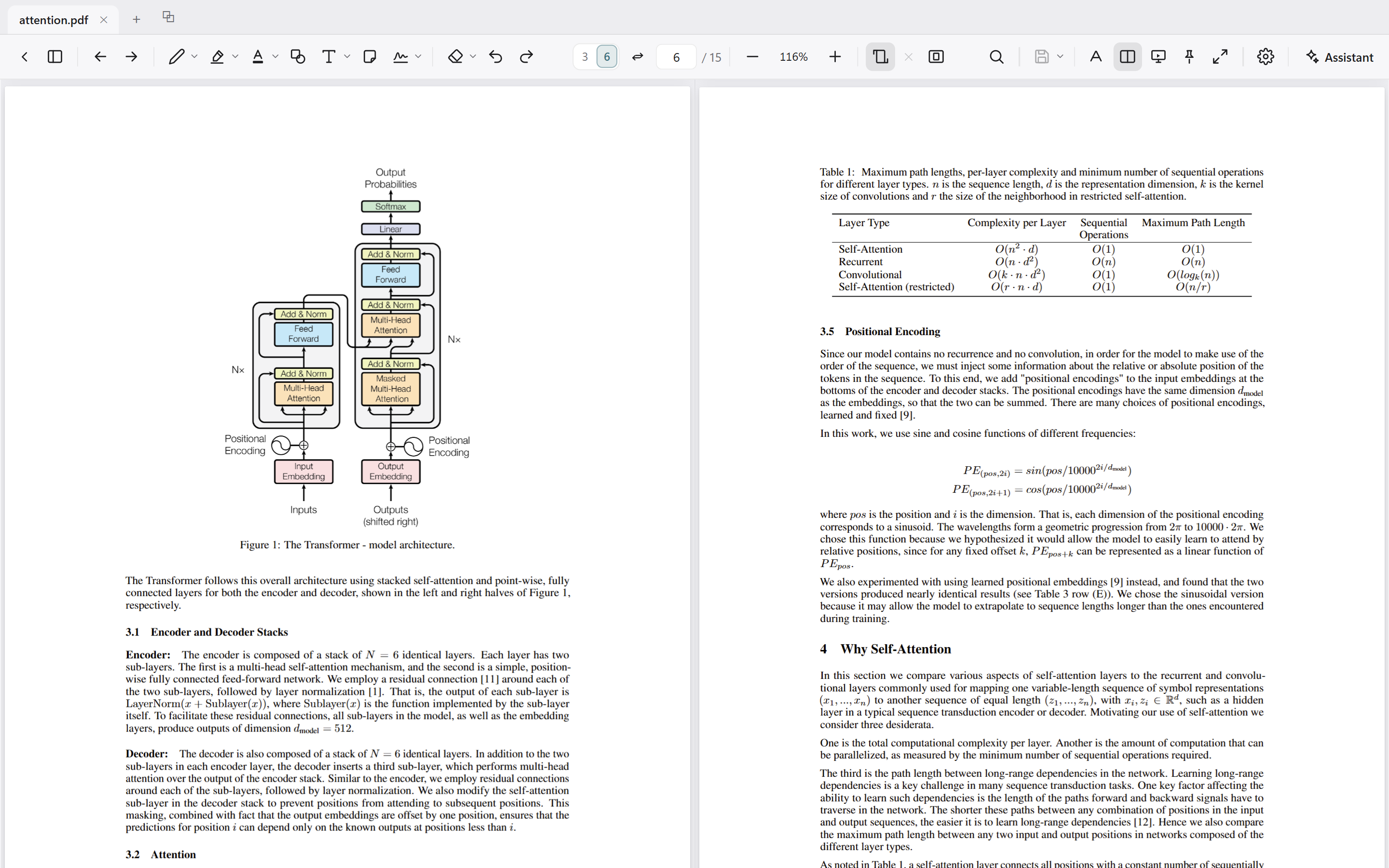
A table or figure often sits on one page and the text that discusses it on another. The S key opens a second column of the same document — or of another one, so two papers can be read side by side.
- Each column has its own page, zoom and rotation, so a landscape table can sit upright beside portrait text.
- Ctrl+click on an internal link opens its target in the other column, keeping the current page in view.
- The second column can hold another document — drag its tab into the view, or choose it under “Open in split view” in the view menu — and each column annotates its own file; with one document open, a mark appears in both columns.
Annotating while you read
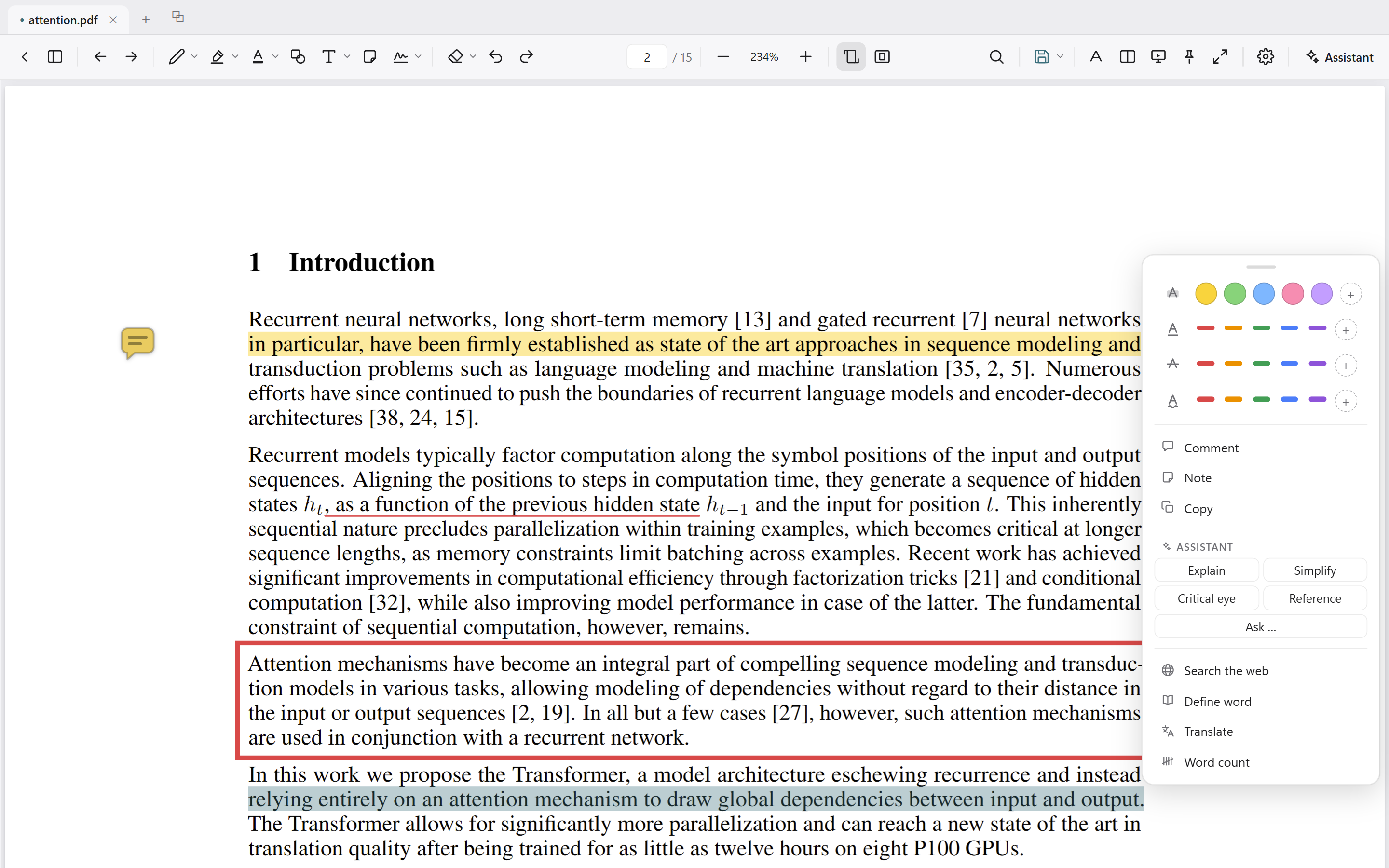
Selecting text opens the annotation menu at the selection — highlight, underline, a comment, or a question for the assistant. The toolbar carries the same tools, with colour, thickness and opacity set per tool and remembered between sessions.
- A notes panel lists every mark by page, with search and colour and type filters; comments are edited directly in the list, and a click goes to the mark. A summary — highlighted text included — exports to Word, Markdown or HTML.
- Comments can be shown in the margin as visible text beside the page, each with a leader line to its passage. An export produces a print-ready copy with the comments set in a widened margin, numbered at their anchors.
- Existing marks can be adjusted rather than redrawn: the ends of a highlight, the corner of a shape.
- With a stylus, the pen draws while a finger scrolls; pen pressure varies the line width (beta) and is preserved in the saved file.
- The text tool uses the PDF's standard typefaces — Helvetica, Times or Courier, bold and italic — so the text remains searchable in any reader. A signature can be drawn once and stamped where needed.
- Edits are held in a draft until you save; what is saved is standard PDF annotations, which open correctly in other readers — Zotero included. A document from a Zotero library also gets a Zotero section in the save menu: show the item in Zotero, or copy its citation, reference or BibTeX entry.
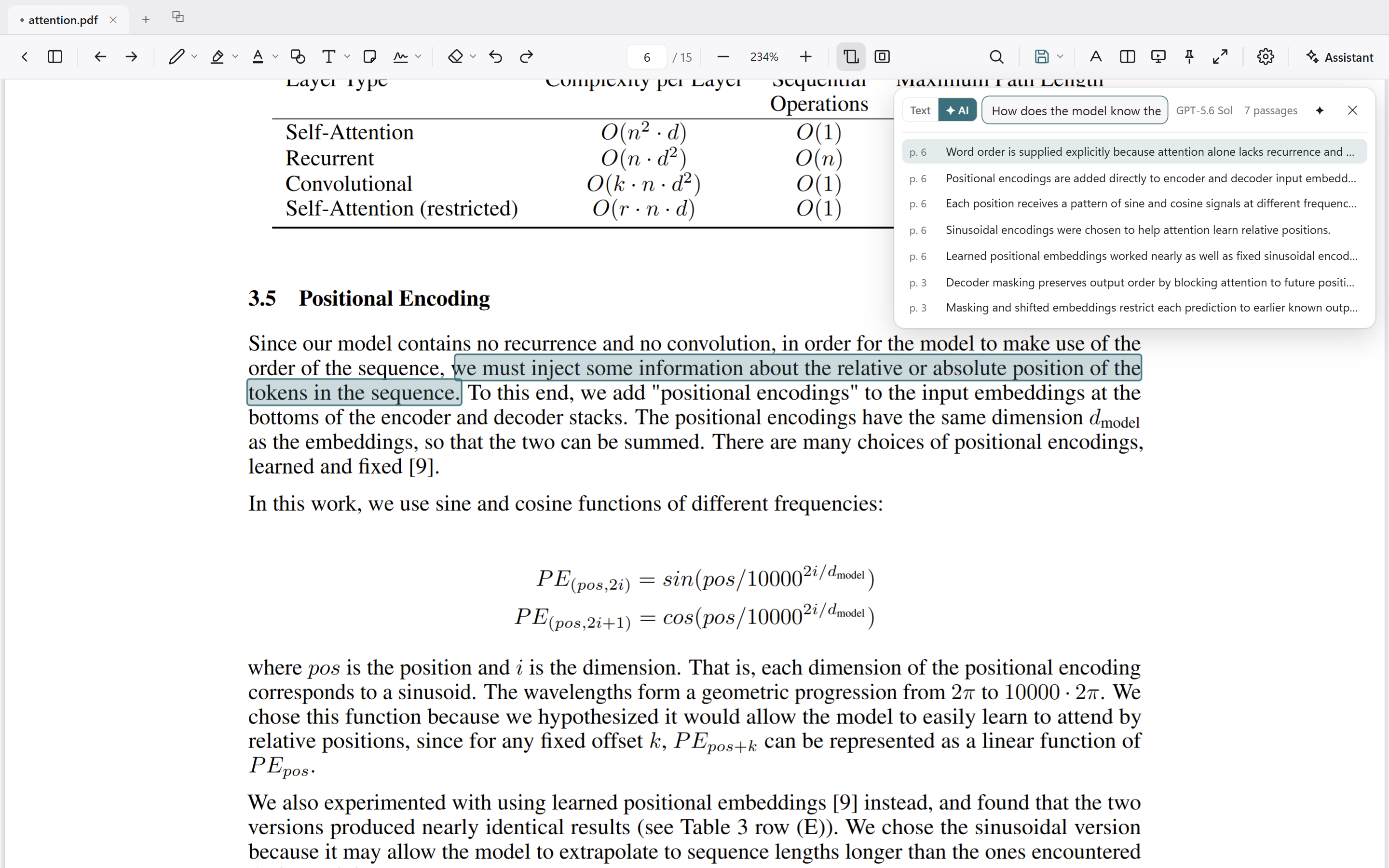
Search by words or by meaning
Both modes live in one search bar, a tab apart.
- By words: match case, whole word, a results list with excerpts, and every match marked on the page. The list opens folded, so the bar never covers the hit it points at; unfold it and the choice is remembered.
- By meaning: describe a topic in your own words and get the passages that discuss it, ranked. This mode uses the assistant's key.
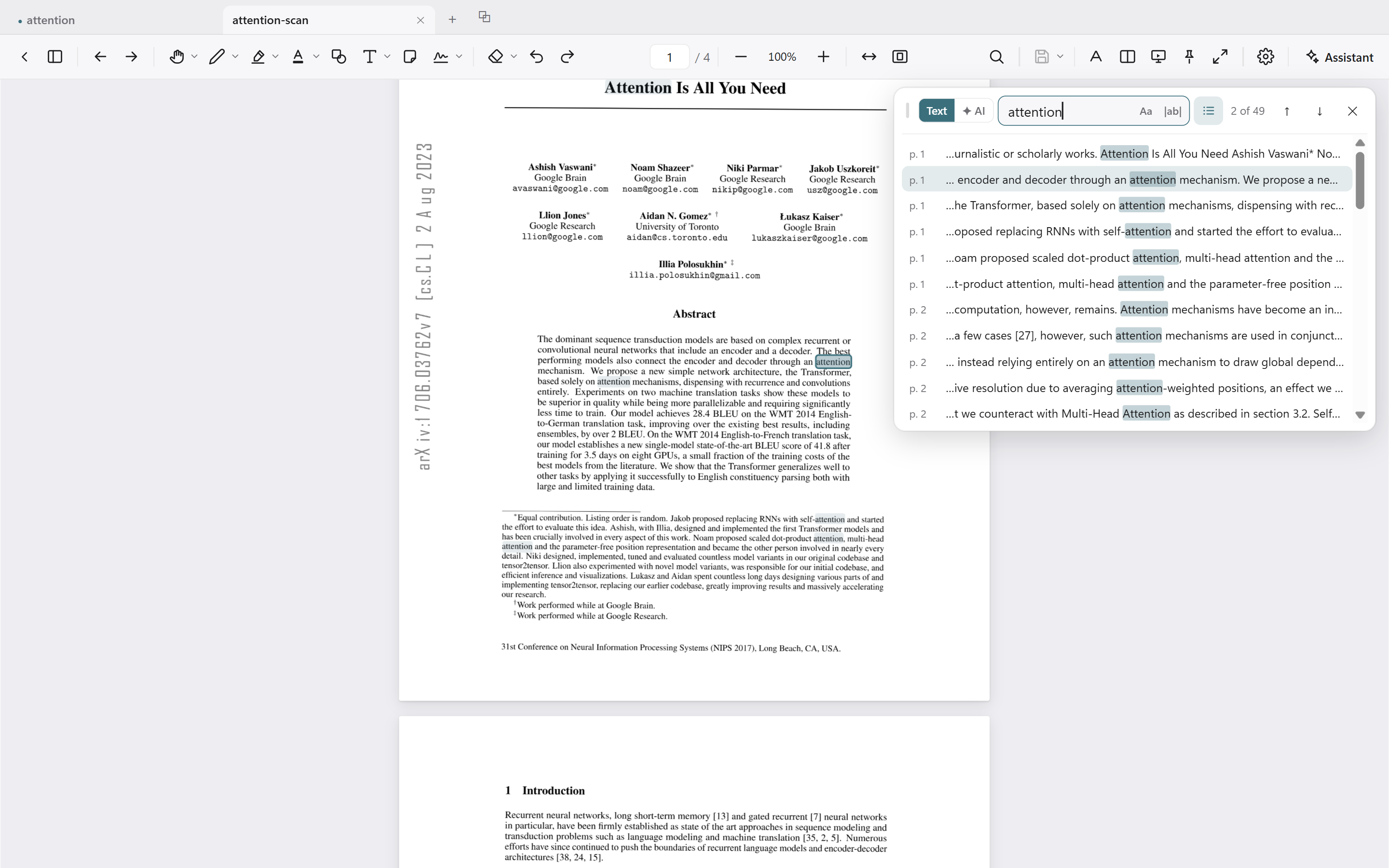
Scanned pages have text
A page that is only a picture of text — a scan, a reprint, a photocopied chapter — is read by text recognition on your own computer. From then on its words can be found, selected, copied, marked and asked about like any other page's.
- The pages on screen are read first; a search reads the rest and shows the hits as they come.
- Nothing is sent anywhere for this, and nothing is written into the file. The read is not perfect: now and then two short words come out joined.
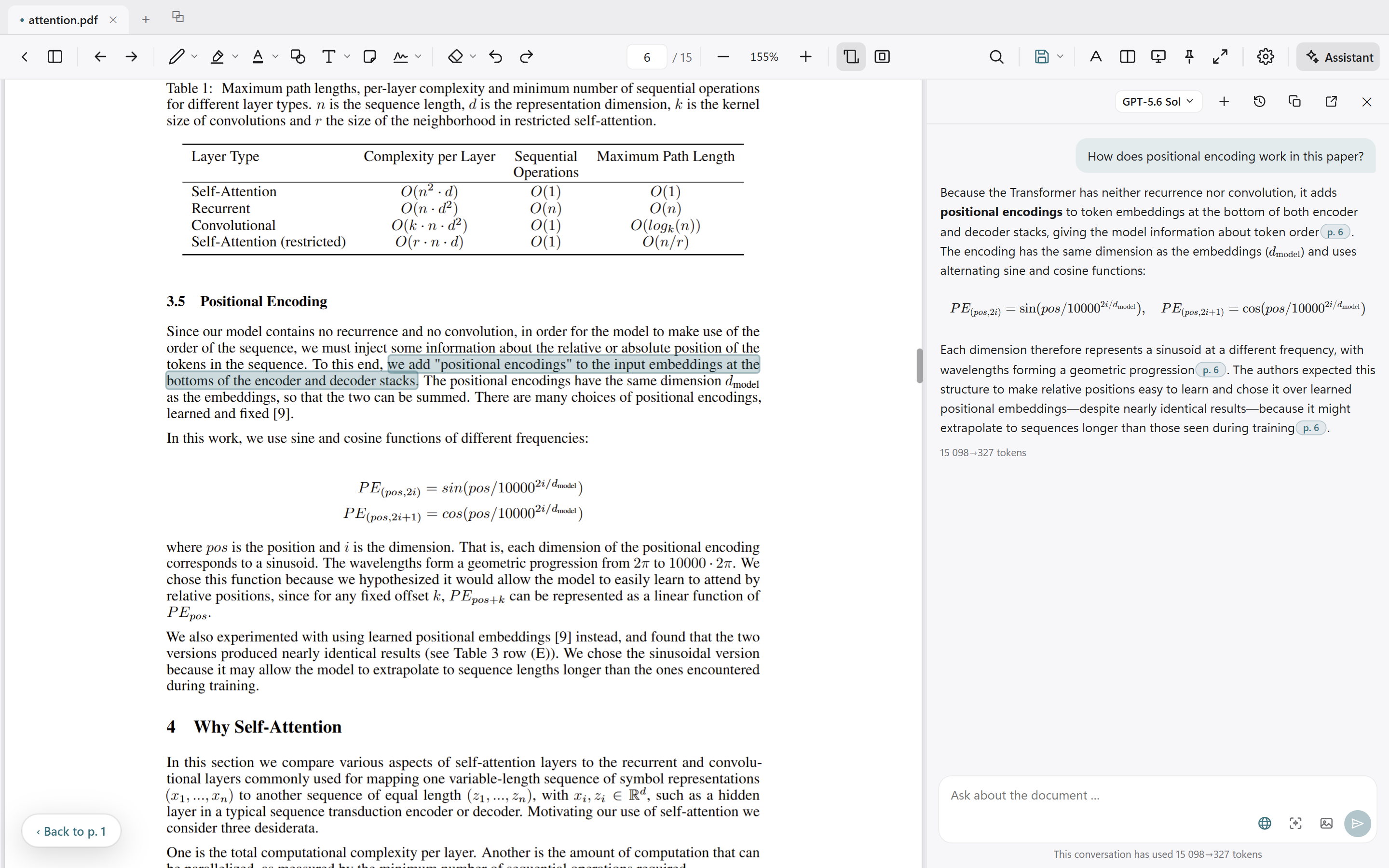
An assistant that cites its sources
Optional, and it runs on your own API key — or on your ChatGPT plan. Each claim carries a reference, and following it goes to the passage the claim came from.
- Structured article summaries: research question, method, data, findings, limitations.
- A figure or table can be cropped into the chat and asked about.
- Questions about your own annotations — “summarize what I've highlighted”.
- A scanned document is read the same way: the assistant gets the text recognised on your computer, with clickable citations, instead of only pages attached as images.
- Conversations are kept with their document and listed across documents in the library, searchable; an earlier conversation — about this paper or another — can be attached to a new question as context.
- One paperclip in the composer attaches context to a question: an earlier conversation, an image, or a local file — a PDF or a text file — whose text goes along as notes beside the document, which stays the only source the assistant cites.
- The assistant can open in its own window, so the document keeps the whole screen; a citation click still goes to the passage in the window showing the document.
- Providers: OpenAI, Claude (Anthropic), Google Gemini, Azure OpenAI, OpenRouter, Grok (xAI), Mistral and Groq, one key field each — or any OpenAI-compatible endpoint and local models via Ollama or LM Studio, with no key. Each answer reports the provider's token count.
- Sign in with ChatGPT Plus or Pro in the desktop app and use the plan's allowance instead of an API key — the browser extension uses that sign-in too when the app is installed. An unofficial route OpenAI allows today, under ChatGPT's terms.
Your notes in Claude, Codex and other AI tools
The desktop app can let an AI tool on your computer search what you noted across every paper: highlights with the words they mark, comments, and your assistant conversations. Ask it while you write and it looks the notes up, without opening a PDF.
- Nothing to download. The MCP server is part of the app. Claude and Codex are one switch each, under “AI tools” in the settings menu.
- Other tools that support MCP take one config entry, which the app copies for you with your paths filled in. How to set it up.
- For a tool that cannot connect, “Copy for AI” copies one document's notes and conversations as text to paste. This also works in the browser extension.
- Off until you turn a tool on, and the same switch takes it back. Each document has its own switch and a whole folder can be kept out, and a tool never sees the PDFs, images, file paths or anything from a password-protected document.
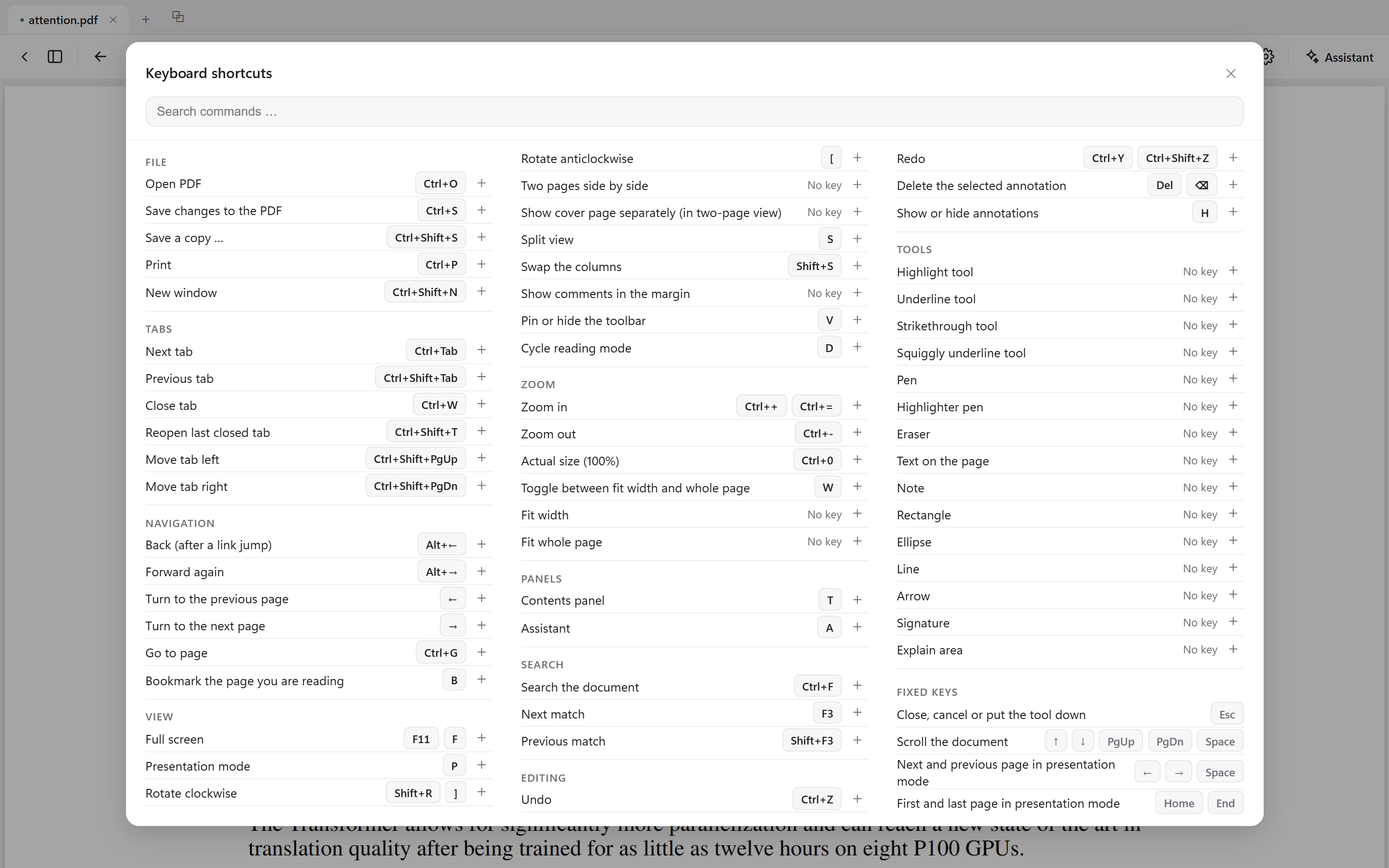
Shortcuts you can rebind
Every command is listed in one map in settings, grouped by task, with its keys beside it. Any shortcut can be rebound or reset — one key or all at once.
Local by default
Reading, annotating and saving are entirely local; the app runs without network access. Two lookups go online, each on a click: a document's reference from doi.org, and a cited paper's abstract from free scholarly databases — only the DOI, or the one reference entry, is sent.
Assistant requests go directly to the provider you chose — there is no intermediary server — under your key and that provider's terms. The key is stored in the platform's own key store: DPAPI on Windows, Keychain on macOS, the system keyring on Linux. The privacy notes have the per-platform detail.
An AI action sends document content — normally the whole text, an excerpt for very long documents — and some actions fire on one click. An AI access switch in settings can ask before a document is first shared with a provider — naming the model and what is about to be attached — or block AI requests entirely. An AI tool you turn on reads your notes and conversations, and what it reads goes to that tool's provider; its own switch takes that back.